Operating systems: peripheral, user and file management
Practise 27 exam-style questions on Operating systems: peripheral, user and file management for OCR GCSE Computer Science (Paper 1). Write your answer as you would in the exam and get it marked in seconds against the mark scheme, point by point, with the Study Helper on hand if you get stuck.
27 questions
1–8 marks each
Instant marking
No sign-up needed
20 questions, marked as you go
Sample questions with model answers
Here are 4 of the questions in this topic, each with a model answer, an explanation of why it earns the marks and the mark scheme an examiner would use.
Question 1
1 mark
Lucy tries to save a file called Poster.png and sees this message:
"A file called Poster.png already exists in this folder. Do you want to replace it?"
Which function of the operating system shows this message?
Choose your answer.
File management
User management
Memory management
Peripheral management
Model answer
File management
Explanation
File management handles naming, saving, moving and deleting files and organising them into folders. Two files in the same folder cannot have the same name, so the OS warns Lucy before the new file replaces the old one. User management deals with accounts and access rights, not file names.
Mark scheme
1 mark
File management
If more than one option is given, 0 marks.
Question 2
2 marks
Describe the difference between copying a file and moving a file.
Model answer
Copying a file makes a duplicate in the new location while the original stays where it was, so there are then two copies. Moving a file places it in the new location and removes it from the old one, so there is still only one copy.
Explanation
Copying and moving are both file management tasks carried out by the operating system. The key difference is what happens to the original: it stays when you copy and goes when you move. Copying is useful for backups; moving is used to reorganise files into folders.
Mark scheme
1 mark
Copying makes a duplicate of the file in the new location, and the original stays where it was (so there are two copies)
1 mark
Moving puts the file in the new location and removes it from the original location (so there is only one copy)
Each mark needs what happens to the original file. Do not accept 'moving deletes the file'.
Question 3
3 marks
Describe what the operating system does when a user saves a new file.
Model answer
The operating system asks the user for a file name and lets them choose the folder to save it in. It checks that no other file in that folder has the same name, and warns the user if one does. It then writes the data from RAM to secondary storage and records the file's details, such as its name, size and date, so it can be found and opened later.
Explanation
Saving combines file management (naming the file and putting it in a folder) with moving data from RAM to secondary storage, where it is kept permanently. The OS also keeps a record of where each file is stored so it can find it again. Remember that file names must be unique within a folder.
Mark scheme
1 mark
Asks the user for a file name (and a file type/extension) // gives the file a name
1 mark
Lets the user choose the folder/location // stores the file in the chosen folder
1 mark
Checks the name is not already used in that folder // warns before replacing an existing file
1 mark
Writes/copies the data from RAM to secondary storage
1 mark
Finds free space on the storage device for the file
1 mark
Records the file's details (e.g. name, folder, where it is on the storage, size, type, date and time saved) so it can be found and opened later
max 3. Do not award MS1 and MS6 for the same statement, e.g. 'it stores the file's name' scores MS1 only.
Question 4
4 marks
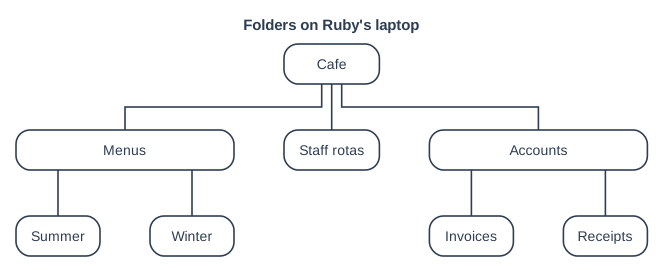
The diagram shows how Ruby has organised the files for her cafe into folders. Each line joins a folder to a folder stored inside it.
Explain two benefits of organising files into folders like this. Refer to Ruby's folders in your answer.
Model answer
Grouping related files makes them quicker to find: for example, Ruby knows all her invoices are in the Invoices folder inside Accounts, instead of searching through every file she has. Files with the same name can also be kept in different folders, so she can have a file called Menu in both the Summer folder and the Winter folder without one replacing the other.
Explanation
Folders are a key file management feature. They make files easier to find, let files with the same name exist in different places, and let a whole group of files be shared, protected, copied or backed up at once. In an 'explain' question with a diagram, use the folder names to show how each benefit applies.
Mark scheme
1 mark
Files are quicker/easier to find (because related files are grouped together)
1 mark
...e.g. Ruby knows all her invoices are in the Invoices folder inside Accounts
1 mark
Files with the same name can be kept in different folders
1 mark
...e.g. a file called Menu can be in both the Summer and Winter folders
1 mark
Access rights/sharing can be set for a whole folder
1 mark
...e.g. staff can be given access to Staff rotas but not Accounts
1 mark
A whole folder can be copied/backed up/moved/deleted in one go
1 mark
...e.g. she can copy the Accounts folder for her accountant
Mark in pairs: 1 mark for each benefit and 1 for applying it to Ruby's folders, max 4 (two benefits). Also accept the pair: less chance of opening/deleting the wrong file ... e.g. old Summer menus are kept apart from the current Winter menus.
Ready to try the rest? Every answer you write is marked against the mark scheme, so you can see exactly where the marks are.
Ctrl + Enter to check
Study HelperHints first, answers after you try
Stuck on this one? Ask for a hint and I’ll point you in the right direction, without giving the answer away. Once you’ve checked your answer, I’ll show you how the marks are awarded.